Inspections & QR check-in
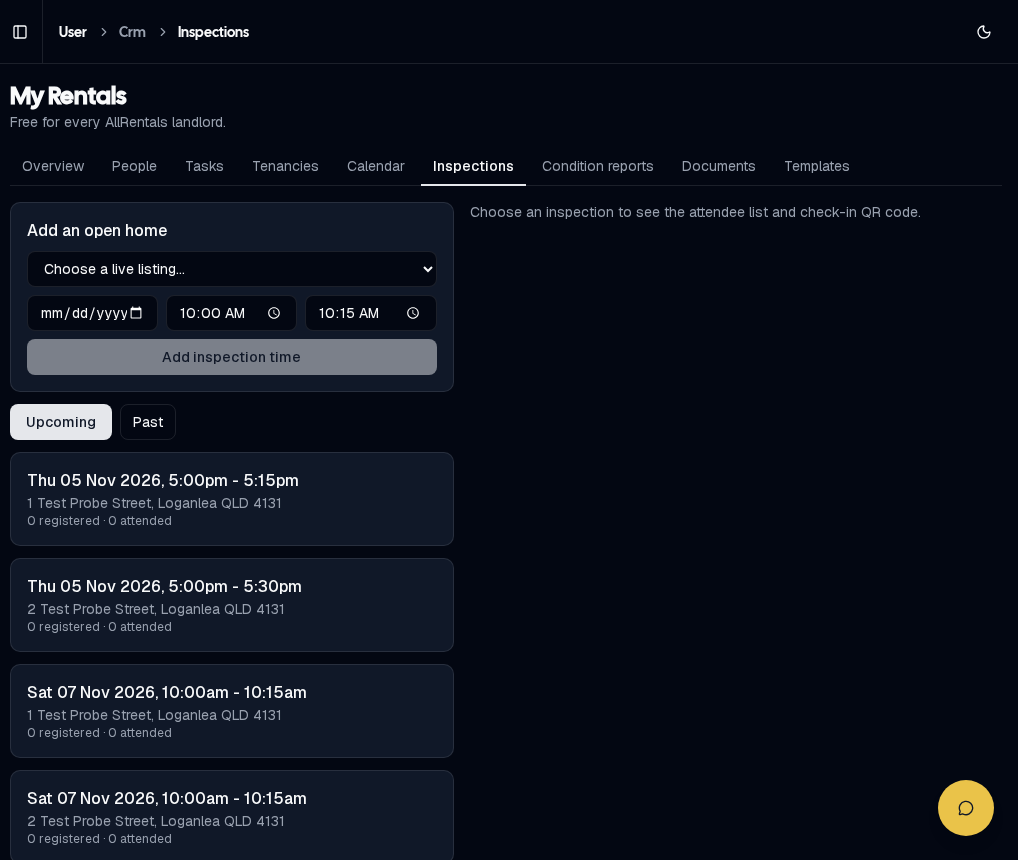
My Rentals → Inspections
- Add inspection times in step 6 of your listing, or under My Rentals → Inspections → Add an open home: choose the listing, date, start and finish time, then click Add inspection time.
- Renters register from your listing page and get a confirmation email.
- Every registered person gets an email reminder 2 to 26 hours before the inspection.
- Need to cancel or change a time? Email your registered attendees from My Rentals → Inspections.
QR check-in

QR check-in on the day
- On your listing card, click Print Check In QR. An A4 "Open for inspection – Scan to check in" sign opens. Click Print this page (A4).
- Put the sign up at the door. Visitors scan it and enter their details. Walk-ins are welcome.
- They see "You're checked in" and are emailed the link to apply.
- Each visitor is added to your People list and marked as attended. A second scan on the same day doesn't create a duplicate.
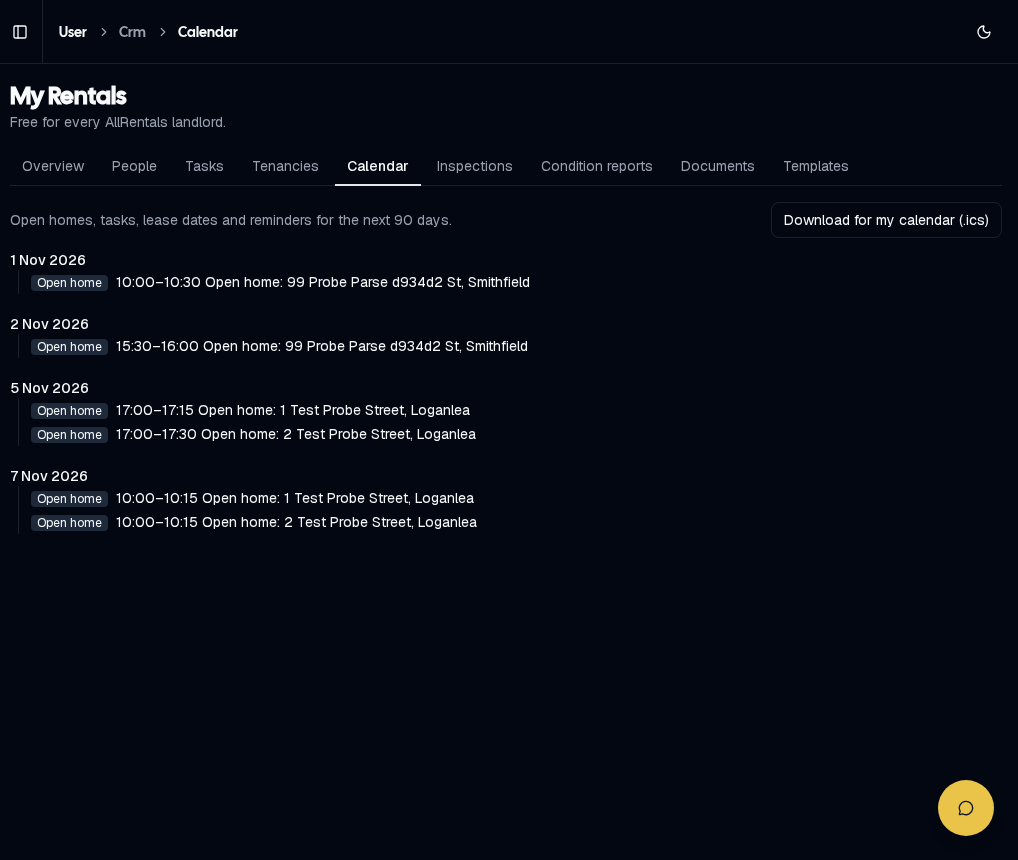
Calendar: download open homes to your own calendar (.ics)